How Interior Designers Can Reclaim Their Time with Claude Cowork
I’ve written about Claude’s capabilities for the creative side of interior design (where, honestly, it didn’t fully deliver), as well as Claude Design: the part of the tool that can assist with interior design visuals. However, there’s a missing piece in Claude’s AI capabilities for interior designers: Claude Cowork.
Claude Cowork is the side of the tool that supports the business and administrative work behind interior design—something that often gets overlooked but takes up a significant amount of time.

The Admin Side of Interior Design
As a designer, every time I tell someone what I do, I usually hear, “Wow, that sounds like so much fun.” And while there is a lot to love about the job, there’s also a huge amount of admin work behind the scenes.
From product tracking to paperwork—like proposals, purchase orders, quotes, and invoices—not to mention putting together specs, a large portion of the job doesn’t fall into the “fun” category. Like any profession, interior design comes with tasks that are necessary but not particularly enjoyable.
That’s where tools like Claude Cowork come in.
With the right AI support, interior designers can shift their energy back into the creative aspects of their work and offload time-consuming, non-creative tasks. In this post, I’ll explore how you, as a fellow interior designer, can use Claude Cowork to reduce admin work and focus more on what you actually enjoy.
How Claude Cowork Can Assist Interior Designers
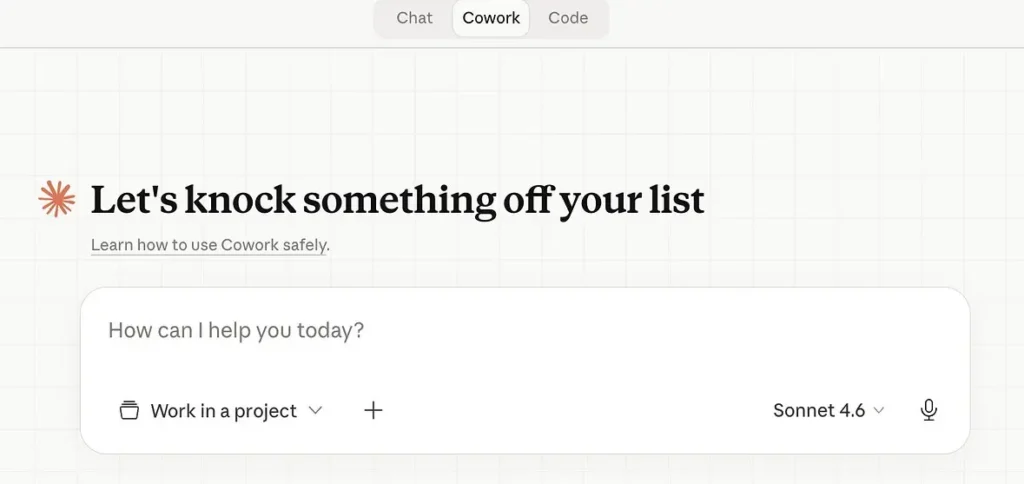
Claude Cowork can free up your mental space and time by taking over tedious, low-value admin work. Like Claude Design, it does require some upfront setup to get high-quality results when prompting. But once it’s configured properly, it can save you a significant amount of time, and as the AI becomes more familiar with your processes, those time savings only increase.
The Difference Between Claude Chat and Claude Cowork
With chat, you’re managing every step of the process. You write the prompt, review the output, and decide what happens next. It’s useful for designers who want help speeding up tasks like emails, editing, or brainstorming ideas.
Cowork, on the other hand, is different. You hand over the goal, and Claude takes it from there. It can build a plan, read your files, work through each step, and check whether the goal has been achieved. You’re not involved in every step—Claude Cowork delivers the result.
What Can Claude Cowork Do For Interior Designers?

Procurement Tracking
One of the most valuable use cases for interior designers is procurement tracking.
Procurement is one of the most time-consuming parts of running a design business, and it’s neither creative nor particularly enjoyable. With AI, this is the kind of work that can largely run in the background.
Inside Claude Cowork, you can integrate it with your email inbox so it can track orders as they progress, even pulling updates from tracking numbers. Every time there’s a status change, it can automatically update your product tracking spreadsheet—no manual entry required.
And it doesn’t stop there.
At the end of each day, Claude can send you a recap of everything that’s changed. At the end of the week, it can compile that data into a clean, client-facing update email—reducing the time you spend on communication as well.
To make this work, you’ll need to connect the relevant systems—like trade accounts, login-protected portals, and retail sites.
With Claude Cowork, interior designers can:
- Connect their email to automatically track product and project status
- Automate procurement tracking so it’s no longer a manual task
- Build workflows that check shipping updates from carriers like FedEx and UPS
- Generate regular internal summaries and client updates
Product Sourcing

Product sourcing is also a time-consuming part of the interior design process. And while it’s one of the more enjoyable aspects of the job, the reality is that designers don’t always have the time to do it thoroughly.
With Claude Cowork, interior designers can:
- Source finishes from trade websites and add them directly to carts
- Compare pricing across vendors for the same product
- Generate product selection schedules with specs and source links
- Flag backorder timelines and suggest alternatives
- Organize sample requests by manufacturer and timeline
Budgets and Financials
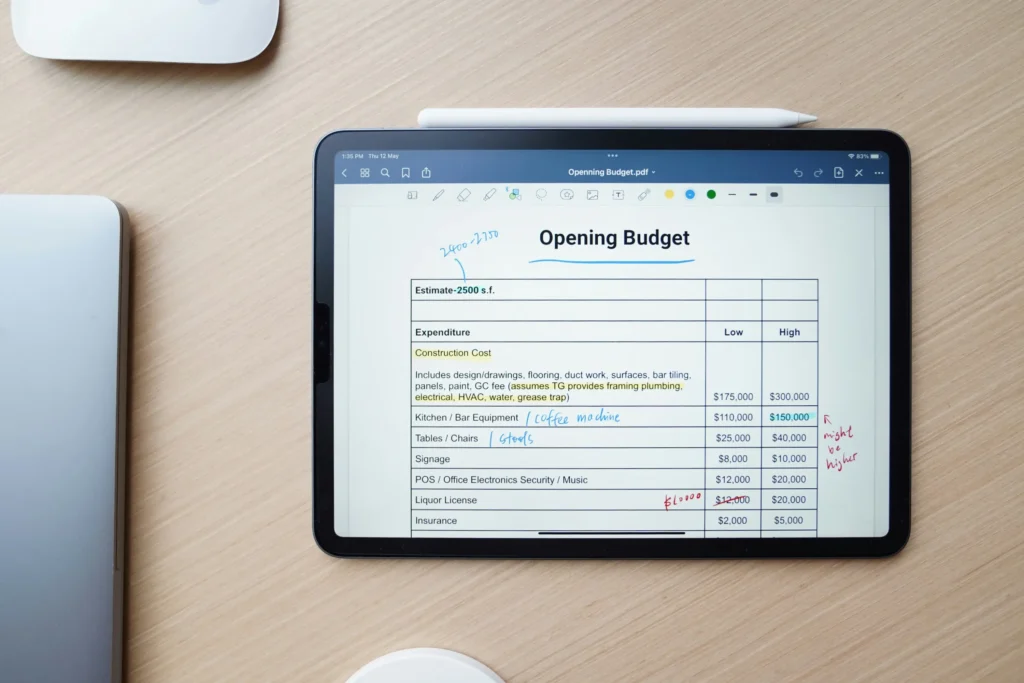
A huge part of interior design is tied to budgeting and financial tracking. For many designers, this side of the work can feel overwhelming and far removed from the creative process.
With Claude Cowork, interior designers can:
- Build furniture budget estimates for client presentations
- Create room-by-room budget breakdowns from selections
- Run value engineering passes to meet a target budget
- Create data visualization dashboards to understand project financials at a glance
- Generate custom client dashboards for each project
- Track actual spend vs. budget as orders are placed
- Build markup and margin calculators tailored to their fee structure
How To Set Up Claude Cowork
For Claude Cowork to be genuinely useful in your interior design business, setup isn’t optional—it’s foundational. The quality of its output depends entirely on how well you structure its access, files, and context.
Claude Cowork operates locally on your device. It can read, edit, and organize real files on your computer, as well as interact with connected tools like your email or project management systems. That’s what allows it to execute tasks independently—but it’s also why a thoughtful setup is critical.
Step 1: Create a Dedicated “Cowork” Folder System
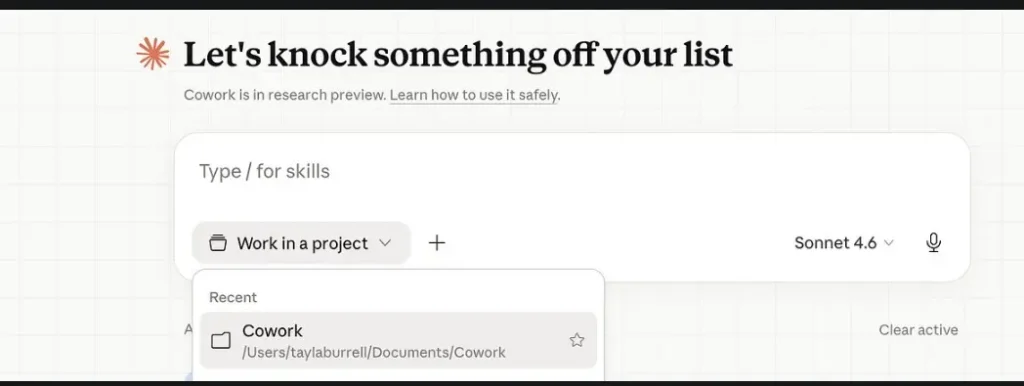
Claude Cowork can only work with what you give it access to. Start by creating a dedicated folder on your computer that will act as its working environment.
Important: Cowork can edit and permanently delete files. Don’t point it at your only copy of critical documents. Instead, duplicate or organize files intentionally within this system.
A practical folder structure for an interior designer might look like:
- Procurement
- Purchase Orders (POs)
- Vendor Confirmations
- Tracking Information
- Product Sourcing
- Selections
- Spec Sheets
- Vendor Links
- Client Projects
- One folder per client/project
- Budgets & Financials
- Estimates
- Actual Spend Tracking
- Client Communications
- Draft updates
- Weekly reports
When you start a task in Claude Cowork, you’ll point it to one of these folders (or subfolders). That context is what it uses to understand what it’s working on.
For example: if you want Cowork to manage procurement updates, it should have access to your POs, order confirmations, and tracking details within the Procurement folder.
IMPORTANT: Cowork Is Device-Based
Claude Cowork runs on your device—not purely in the cloud. That means:
- Your folder system is its memory and context
- If you switch computers, Cowork won’t automatically have access to that setup
- You’ll need to sync your folders (e.g., via cloud storage) or transfer them manually
This is where many setups fall apart. If your files are scattered, inconsistent, or incomplete, Cowork won’t perform well.
A clean, consistent folder structure is what allows it to:
- Track procurement across projects
- Generate accurate reports
- Update budgets correctly
- Pull the right information for client communications
Step 2: Structure Your Workflows by Task
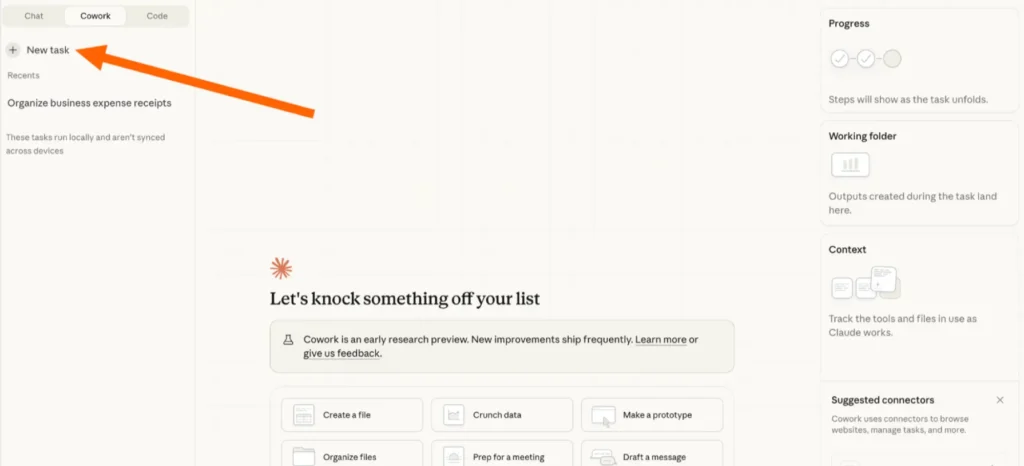
Instead of thinking of Cowork as a general assistant, think of it as a system of task-specific workflows.
Start by identifying the areas you want to offload:
- Procurement tracking
- Product sourcing
- Budget management
- Client updates
Then ensure each of those has:
- A dedicated folder
- Consistent file types and naming conventions
- Enough real data for Cowork to learn from
You don’t need to build everything at once. In fact, it’s better not to.
Start with one high-impact area (for most designers, that’s procurement), and expand over time. Claude Cowork improves as you iterate—refining folders, adding examples, and clarifying instructions.
Step 3: Connect Your Email and Key Tools
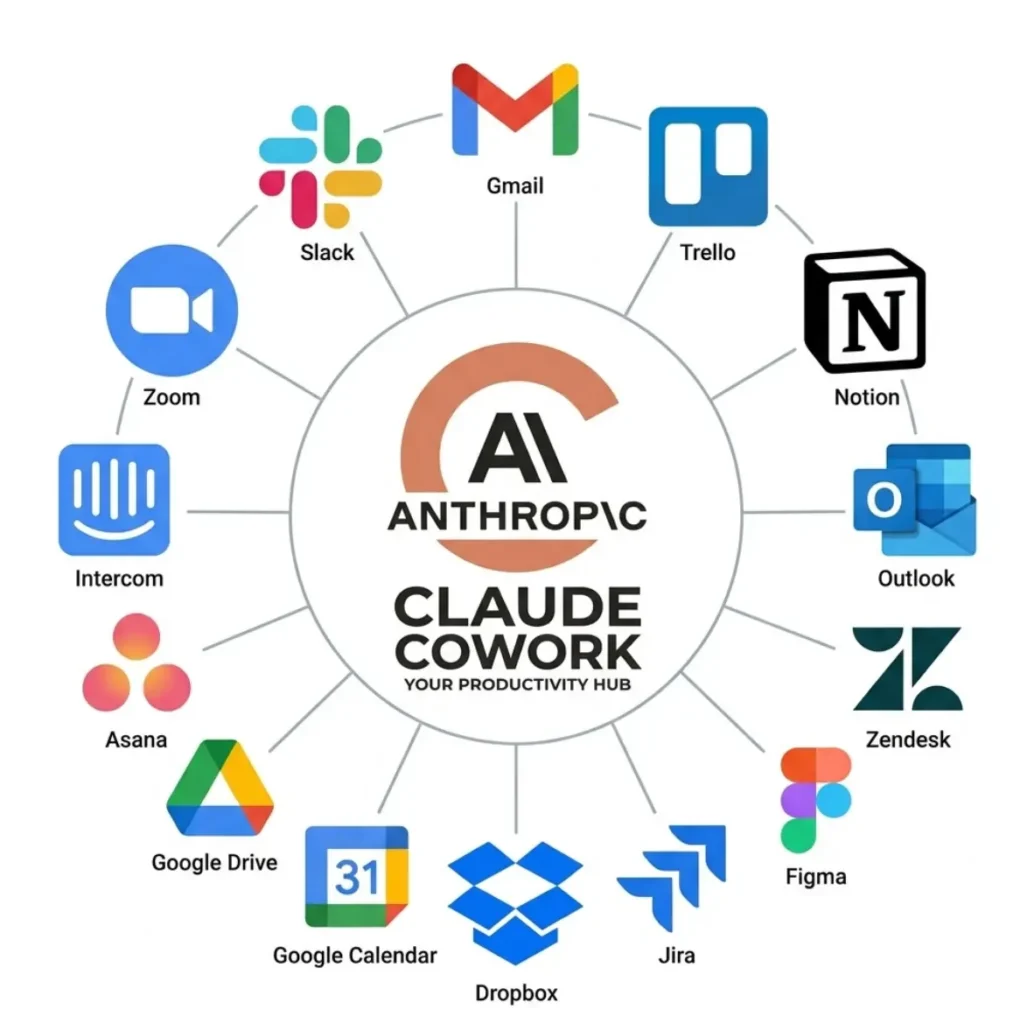
To unlock the full value of Claude Cowork, you’ll need to connect it to your inbox and any relevant tools.
For interior designers, email is especially important because it contains:
- Vendor order confirmations
- Shipping updates and tracking numbers
- Backorder notifications
- Client communication
Once connected, Cowork can:
- Monitor order progress automatically
- Extract tracking details
- Update procurement logs
- Trigger summaries and reports
This is what allows it to “fill in the gaps” without you manually feeding it every update.
Step 4: Feed Context, Then Iterate
Claude Cowork doesn’t require a perfect system on day one—but it does require enough context to start.
Focus on:
- Providing real project data
- Keeping folders organized
- Gradually refining how tasks are structured
Over time, you can even have Cowork help build better systems—creating templates, reorganizing files, and improving workflows based on how you work.
Claude Cowork is powerful, but it’s not plug-and-play. For interior designers, it works best when it’s treated like an extension of your studio operations, helping you reduce admin work and get back to the fun, creative parts of the gig.
Let me know in the comments below what systems you’ve set up in cowork!
Click Here To Shop My Favourite Home Goods
Let’s design your space together, virtually.