The Best and Easiest 3D Rendering For Interior Design
As a designer who blogs about interior design software, including 3D rendering tools, floor-planning platforms, project-management systems, AI tools, and all-in-one solutions, I’ve developed a solid understanding of the many programs available on the market. Some software is marketed toward hobbyists, while others are built for interior design professionals. I review and blog about both.
This is where Coohom comes in. This 3D rendering and floor plan software sits somewhere between both worlds. It’s extremely popular among hobbyists, yet I’ve also seen interior design professionals use it. Coohom has even been integrated into certain professional design software.
This led me to take a deeper dive into Coohom’s capabilities. In this post, I will answer the following questions: How easy is it to create a 3D floor plan and render in Coohom? Is it easy enough for amateur use? And, is Coohom truly robust enough for interior design professionals?
AVOID COSTLY (AND UGLY) DESIGN MISTAKES

What Can Coohom Do?

Full 2D ↔ 3D floor-planning and room layout: You can draw or import a floor plan (or blueprint), then build out walls, windows, doors, etc., using a “floor planner / room planner.” Coohom supports designing your layout from scratch or via upload.
Drag-and-drop furnishing & decor from a large model library: Coohom has a very large library of furniture, decor, fixtures, materials, textures and more (incl. kitchen, bath, closets, furniture, lighting, etc.), which can be dropped into the design and customized.
Realistic rendering / 3D visualization / photorealistic output: Coohom touts that you can generate high-quality, photorealistic renders of your designs, showing lighting, textures, materials, colors, and realistic spatial relationships.
Fast render times & cloud-based rendering (no heavy local hardware needed): Since Coohom is cloud-based, the rendering is handled remotely. They claim you can get renders in seconds rather than waiting for long render times, which helps even if you don’t have a powerful computer.
Support for video, walkthroughs, panoramic & 360° (or even 720°/VR) presentations: Coohom mentions options like 360° walkthroughs, virtual tours, AR/VR visualization, videos, and immersive presentation formats — useful for clients or walkthrough previews.
Kitchen, Bath, Closet, and Custom Cabinetry: There are dedicated tools to design kitchens, bathrooms and closets. Allowing customizing cabinetry, fixtures, shelving, dimensions, etc.
Flexible export and compatibility options: In Coohom you can import CAD files (floor plans/blueprints). This allows you to bring in your own 3D models (or export to other software), and produce construction-level drawings, bills of quantities/specs, etc. for real-world implementation.
A Designer’s Test of Coohom
Getting started in Coohom was super easy. I signed up and was immediately redirected to the dashboard, where you can select “New Model.” I decided to have some fun and create a space without being too rigid about the design itself, focusing instead on ease of use and the software’s rendering abilities.
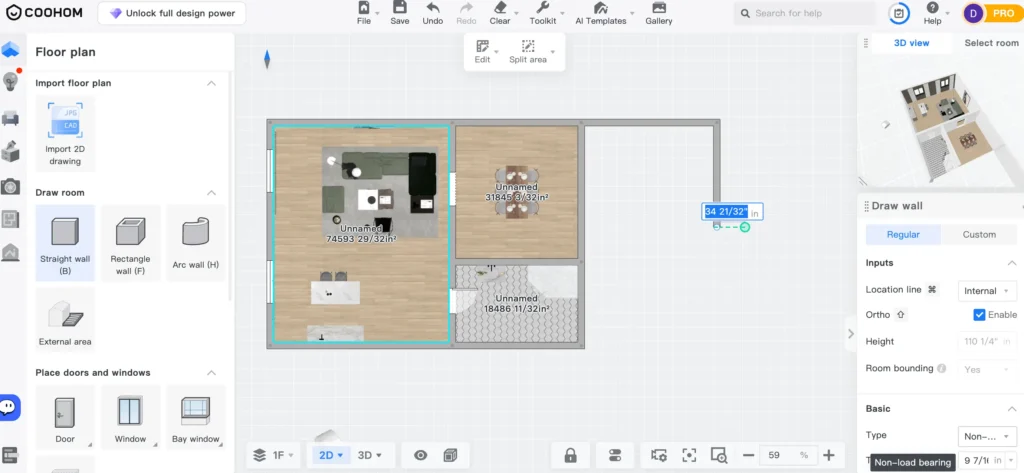
Creating a floor plan with the wall tool was incredibly simple. I love that the software automatically snaps walls straight and aligns them at 90 degrees. With some programs, you think you’re drawing straight walls, only to realize later that your entire model is out of alignment — thankfully, that wasn’t the case here.
Next, I started placing windows and doors. Once again, the process was intuitive. At first, the number of buttons and options on the screen made me assume the software would feel clunky, but that wasn’t the case. Once you understand where the tools are located, the workflow becomes very smooth. Adding interior details such as kitchen cabinets (which can be customized), furniture, decor, and more is straightforward. Coohom also has a large library of pre-built kitchens and fixtures that you can easily drop into your model if they suit your design, which obviously makes things a lot easier.
I built out a few spaces — not my best interior design work, but enough to thoroughly test Coohom’s rendering capabilities.
3D Rendering In Coohom
Once you’ve created your 3D model in Coohom, you can click “Create 3D Rendering.” Getting the right angle of the space takes a bit of manoeuvring, but honestly, it was pretty easy to find the shot I wanted. From there, you can choose the style you’d like to render in, giving you control over the lighting and overall filter — which I think is fantastic. I went ahead and rendered one scene from this test project, and here is the first result.

I have to say, for a space I built in under 20 minutes, this turned out stellar.
For context, I used to build my interior models in SketchUp and render them with V-Ray — and if you’re familiar with those two programs, you know how long it can take to build a space and produce a high-quality render. It could easily be an all-day affair. With Coohom, the process is so painless that even a non-designer could create an impressive 3D interior model and a solid render. Honestly, I’m impressed.
I went ahead and built a few more interiors and created some more 3D renderings to show you the capabilities.


Coohom’s AI Capabilities
Coohom also has a few AI capabilities. Such as, re-styling your space that you have built to different styles, they also have an AI ceiling template which applies lighting to a space and an image generator which I have tested here.
Is Cohoom’s 3D Rendering Robust Enough For Pros and Easy Enough For Hobbyists?

After testing Coohom more extensively, I can clearly see why it sits at the crossroads between hobbyist software and professional software. The interface is very user-friendly. I had no issues creating an interior model. The only thing that mildly annoyed me was that the interface can feel a bit busy at times. The occasional pop-ups appear.
This software is perfect for hobbyists who want to plan their renovation, do their own design work, and easily create impressive 3D renderings.
However, Coohom is also robust enough for professional use. Considering, you can customize just about everything. I know many designers who rely on Coohom for their professional use and genuinely love it.
can coohom replace sketchup?
Now, is this software as flexible as SketchUp? No. But you may not need your 3D rendering and floor-planning software to be as advanced as SketchUp. Coohom is much quicker, easier, and has all the essentials needed to build out interior models.
For many interior design professionals, this software would be sufficient. For hobbyists and DIYers, I think this software is perfect, as it is extremely easy and affordable. So, does this make Coohom 3D Thee Best Rendering For Interior Design? Well, I’d give it a solid 8.5/10.
Also read: The Top 5 Best AI Tools For Interior Design
The Best and Worst Free Interior Design Layout Software
Click Here To Shop My Favourite Home Goods
Let’s design your space together, virtually.